Project Setup with IntelliJ IDEA
Prerequisites
In this example we will use the IntelliJ IDEA Community Edition IDE, at this previous link the Community version is found further down right after the Ultimate version.
Another IDE specific to Java can be used as an alternative, for example, Eclipse or NetBeans, just perform a similar setup.
Install the Netuno platform, the Java project will be integrated with the pre-installed Netuno platform.
Create Project
Once you open IntelliJ IDEA Community create a new Project, click on the New Project button.
Choose the Java option on the left side, and in the Project name, in the Name: field, for the example we will
use Calc.
Choose in Location: where the project will be stored in your files.
And the Build system: is IntelliJ itself.
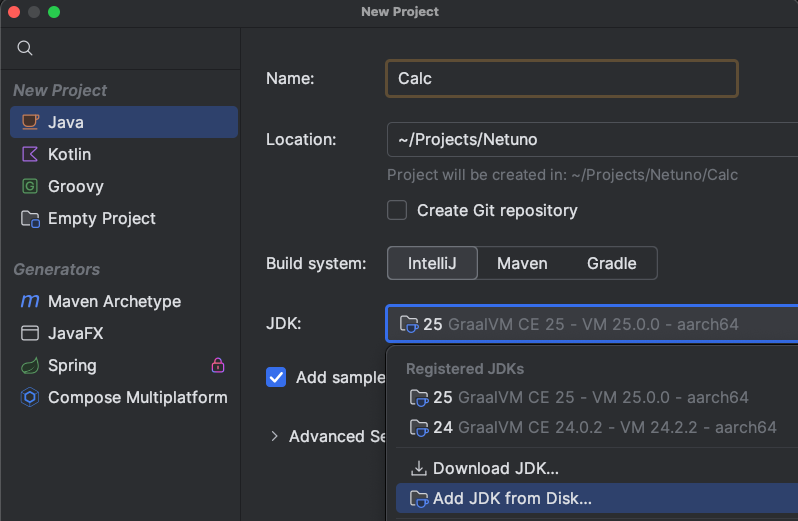
In JDK we must choose the GraalVM that comes with Netuno, change it to add using the
Add JDK from Disk... option, and go to where the Netuno platform is installed, and choose the folder:
netuno/core/graalvm
This is the GraalVM JDK that we recommend should be used in the project, to ensure we can run and debug the project.
Project Settings
In the project files shown on the left, in the first one that says the project name, in this case Calc, right-click
to open the options menu and go to Open Module Settings.
The window that opens should be on the Modules option on the left side, with 3 tabs on the right side:
- Sources
- Paths
- Dependencies
Paths
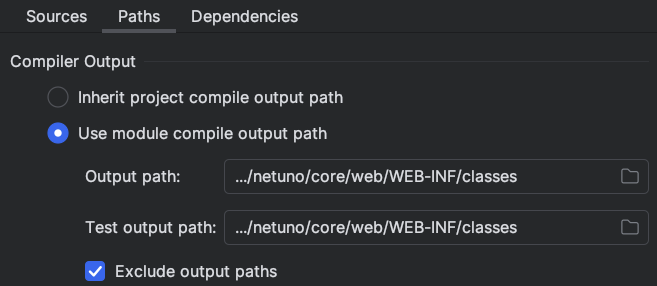
In the Paths tab we will choose in Compiler Output the second option:
Use module compile output path
And we will choose the netuno/core/web/WEB-INF/classes folder that is in the installed Netuno platform, for both
the Output path: and the Test output path: options must have this same path.
The
classesfolder innetuno/core/web/WEB-INFshould be created because it does not exist by default.
Dependencies
In the Dependencies tab, click on the + button that is above the table with listing options.
In the options that appear, click on the first option which is 1 Jars or Directories....
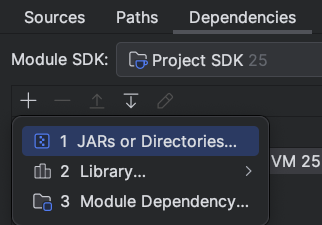
Let's go where the Netuno platform is installed and add all the dependencies:
netuno/netuno.jar- it is at the root of the platform.netuno/core/lib- select and add all files.netuno/core/web/WEB-INF/lib- select and add all files.
If a window appears saying Detected Roots and Choose Roots, uncheck all selected options and
click OK.
Validate in the file list that from the first to the last JAR were added, if you try to select all files with the keyboard shortcut keys it will not work very well, you should select the first JAR and go down until with the shift key you click on the last JAR, this way IntelliJ can load them all well.
Make sure that all dependencies are correctly added, check that you find the first and the last JAR of each folder in the list.
With this the entire Netuno ecosystem for Java is related to your project.
Artifacts
It is where we can generate the JAR file of our project, which facilitates the distribution of the code to other instances of Netuno that are on other computers.
In the Artifacts option that is available in the menu on the left side of the window that is presented in
Open Module Settings, click on the + button that is available, then on the JAR option and finally click on the
Empty option.
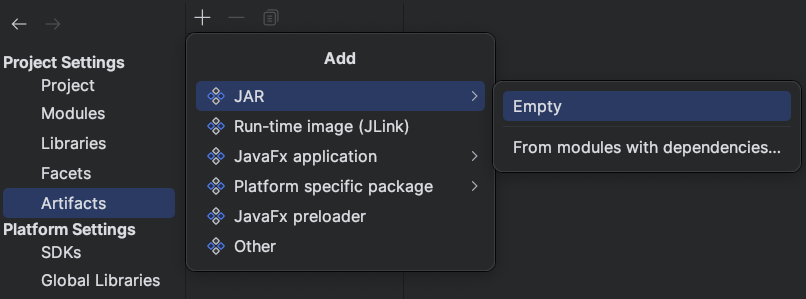
In the Name: field put the project name, for example calc.
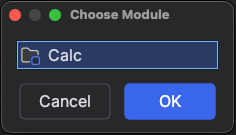
Just below in Output Layout, click on the + button and choose the Module Output option, and in the options window that
appears select our project and click OK.
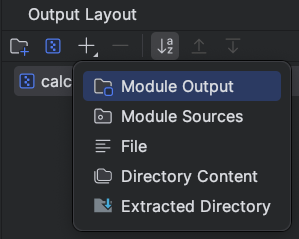
Click on Apply or OK to close the project settings window.
Generate the Artifact
To generate the artifact just go to the IntelliJ global menu, and in the Build > Build Artifacts... option.
Choose the option of the respective project and click Build.
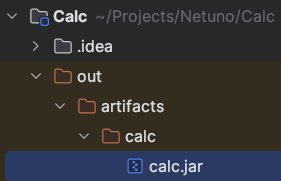
In the files on the left side the generated file appears inside the out folder, in the case of this example it will be:
out/artifacts/calc/calc.jar
Publish Artifact
The created JAR file can be distributed and placed on any other Netuno platform.
Since the platform where the development is being carried out cannot contain the project's JAR, because the code is already published in:
netuno/core/web/WEB-INF/classes
Therefore, for the other platforms that are not used in development and that do not have the classes, then we use the JAR file.
In any installed Netuno platform this JAR should be placed in the lib folder at the root of Netuno:
netuno/lib
Note that this folder does not exist by default, so it may be necessary to create it.
All JARs that are in this folder are automatically loaded in the Netuno platform.
Code Package
As is standard in Java, the code must always have a package.
Your package must be registered in the Netuno global configuration file:
netuno/config.js
Add the following code at the end:
config.packagesScan.add("my.java.project")
If your package is not added in the configuration this way then your project will never be loaded.
Because Netuno only looks for resources and services in previously added packages.
An alternative to avoid registering the package in the configuration is to use Java packages that start with org.netuno.
Netuno automatically looks for resources and services that are in packages that start with org.netuno.
It is recommended to use the prefix:
org.netuno.addon
For example, we can use: org.netuno.addon.calc
The package prefix org.netuno.addon distinguishes that it is a feature added externally and that is not
part of Netuno itself.
Therefore, all your Java code that integrates with Netuno must be defined and built in:
org.netuno.addon.my.project
After org.netuno.addon add the identification of your project.
Execution
To run the project we need to create a new run configuration.
In the top bar, we have a Run button and the Debug one.

Click on the option that says Current File with the down arrow symbol, before the arrow button for execution.
Next click on Edit configurations....
In the window that opens click on the + button in the top left corner, and choose the Application option.
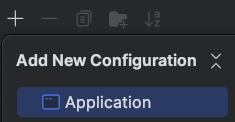
In Name: put Netuno, and in the field that says Main class put org.netuno.cli.Main.
In Program arguments fill in the Netuno server startup instruction with an application,
in this example an application previously created also called calc was created:
server app=calc
The app must be created beforehand, in Netuno use the command:
./netuno app
Put in Working directory: the root folder of Netuno, it is very important that the complete path is there.
It should look like this:
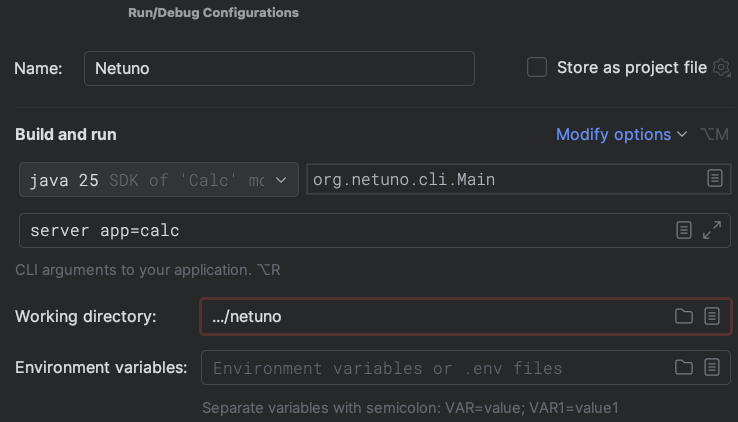
Now just click on Apply and OK.
With this you can run the project or even debug it.

Conclusion
It was shown how to create a new Java project to add new behaviors to the Netuno core.
We also saw the best practices for generating the JAR file and how to distribute it in the netuno/lib folder.
All Java programming techniques and libraries can be used to create any type of functionality in Netuno.
Especially creating a low-code programming resource that is available to all supported scripting languages, such as:
- JavaScript
- Python
- Ruby
- Kotlin
- Groovy
In the following tutorials, see how to create your first low-code programming resource.
And also how to create your first multi-application web service, available in all applications that are configured in Netuno.