Implementing tables and charts
In this tutorial, we will create the interface and logic of a simple application, focusing on data visualization. The project development will cover the topics:
- Creating "Forms", "Fields" and "Relations" to structure the database.
- Building "REST Web Services" to provide the data and the dynamic display of information in tables and charts within the application, using the React ChartJS 2 libraries and the Chart.js dependency, in addition to the Ant Design table component.
The entire visual structure of the project will be developed using HTML, JavaScript and React.js. It is recommended that you have basic knowledge of:
- JavaScript
- React.js
- HTML
💡 If you have questions about these steps, check out:
- Interface Guide: Forms
- Interface Guide: Fields
- Interface Guide: Relations between forms
- Interface Guide: REST Web Services
Final Product
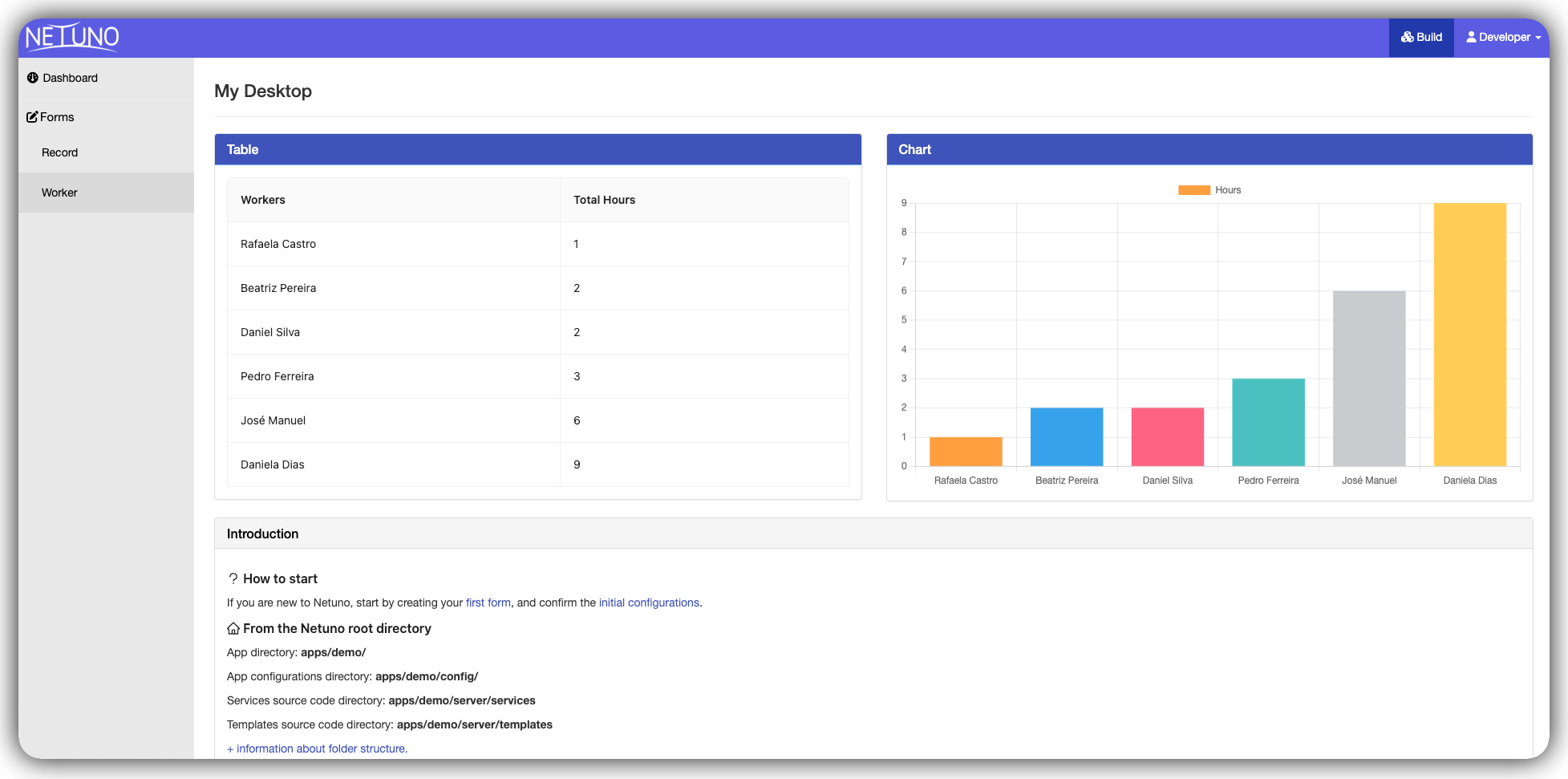
By following all the steps in this tutorial, you will build a functional dashboard in the Netuno workspace, containing:
- A data table listing the worker records and total hours.
- A colorful dynamic bar chart visually displaying the same data.
Solution Architecture
Before writing any code, it is important to understand how the pieces fit together. The solution is divided into 4 layers that communicate from top to bottom:
DashboardContainer         (fetches the data from the server)
       │
       ▼
DataVisualization          (organizes the layout in two columns)
       │
  ┌────┴────┐
  ▼         ▼
TableList  ChartBar        (render the received data)
The advantage of this architecture is that each component has a single responsibility.
Step 1: Data Structure
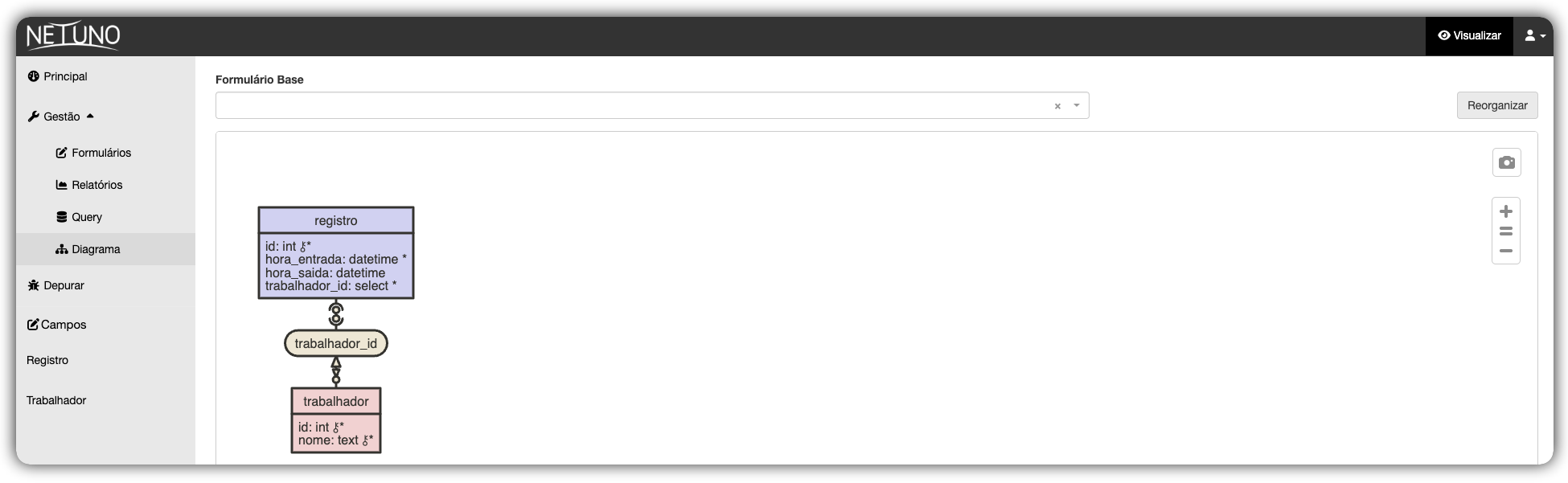
The first step is to create the forms, configure the relationship between them and fill them with data to generate the table and chart later on.
This is the diagram with the architecture of the forms and the fields that you should replicate in your Netuno environment:
Important: Although the
idfield appears in the diagram, it is not necessary to create it manually. Netuno generates this identifier automatically right after creating the table.
Dashboard Template
To display the table and chart, we need a place in your application's interface. Netuno already provides a base template for the main dashboard.
Open your code editor and find the file:
/apps/myapp/server/templates/dashboard.html
(Remember to replace myapp with the actual name of your application folder).
You will notice the following line of HTML code:
<div id="app-dashboard"></div>
Step 2: Data Service
Now that we have the database ready and the HTML prepared, we need to create the "messenger" (a REST Web Service). It will be responsible for going to the database, calculating the total hours of each worker and delivering this information ready for the table and chart.
Creating the service file
Services in Netuno are stored in the server/services/ folder. Navigate to your project directory and create the workers.js file:
/apps/myapp/server/services/workers.js
The DashboardContainer detects the dashboard language and calls /services/trabalhadores when the dashboard is in Portuguese, or /services/workers when it is in English. Each language has its own service file.
Writing the code
This code performs three main actions using Netuno's native features (_db, _val and _out):
-
Query _db.query: Fetches only the active workers from the database and calculates the sum of the hours worked by each of them.
-
Processing _val.list and _val.map: Organizes the result into a clean list with structured objects.
-
Response _out.json: Sends the data in JSON format so that the interface (React) can read it.
Open the workers.js file and paste the code below:
// 1. Query, _db.query() runs the SQL and returns the list of records found.
const dbRecords = _db.query(`
    SELECT DISTINCT
        worker.name, SUM(DATEDIFF(HOUR, record.start, record.end)) AS total
    FROM worker INNER JOIN record
        ON worker.id = record.worker_id
    WHERE worker.active = true AND record.active = true
    GROUP BY worker.name
    ORDER BY total ASC
`);

// 2. Data Processing, _val.list() creates an empty list to store the processed data.
const list = _val.list();

// Iterates over each row returned by the database
for (const dbRecord of dbRecords) {
    list.add(
        // _val.map() creates an object with the fields that React will consume
        _val.map()
            .set("name", dbRecord.getString("name"))  // name → "name" field
            .set("total", dbRecord.getInt("total"))   // total hours → "total" field
    );
}

// 3. Response
// Sends the final list in JSON format to the React interface.
_out.json(list);
-
Pay attention to the field names: The fields defined here as "name" and "total" are exactly the same ones that the React components will look up in the next steps (dataIndex: 'name' and dataIndex: 'total'). They must be identical.
-
About the active = true filter: The database has an active column in the worker and record tables. By filtering only the active records, we ensure that archived or deactivated data does not appear in the table and chart.
Step 3: Frontend Environment (React)
Now that the backend (database and services) is ready, let's prepare the visual interface.
Open the terminal and follow the steps below:
1. Install the base dependencies
Navigate to the ui folder of your application and install the packages.
npm install
2. Install the Chart libraries
Since the project will display charts, download the libraries that will draw them on the screen:
npm install react-chartjs-2 chart.js --save
3. Manage multiple languages
Install the library to manage multiple languages:
npm install react-intl
4. Start the Compiler (Watch)
With everything installed, every time we save a file, it will update the screen automatically:
npm run watch
5. Create Components
To keep the project organized, create separate components for the Table and the Chart.
Navigate to the src/components/ directory of your application and create the folders:
- Table: TableList
- Chart: ChartBar
- Container: DataVisualization
/apps/your_app_name/ui/src/components/TableList/
/apps/your_app_name/ui/src/components/ChartBar/
/apps/your_app_name/ui/src/containers/DataVisualization/
Step 4: TableList Component
The TableList component will receive the data from the service and build the columns automatically using Ant Design — a library of ready-made visual components that ships with the Netuno interface.
Navigate to the TableList folder and create an index.jsx file:
/apps/your_app_name/ui/src/components/TableList/index.jsx
Open the file and paste the code below:
import React from 'react';

import { FormattedMessage } from 'react-intl';

import { Table } from 'antd'; // Ant Design Table Component

import './index.less';

const messages = 'dashboardcontainer.datavisualization.table';

function TableList({ data = [] }) {
  // Definition of the headers and which field of the object to display in each column
  const columns = [
    {
      title: <FormattedMessage id={`${messages}.workers`} />, // Translated title
      dataIndex: 'name',  // "name" field from the JSON returned by the service
    },
    {
      title: <FormattedMessage id={`${messages}.total`} />,
      dataIndex: 'total', // "total" field from the JSON returned by the service
    }
  ];

  return (
    <Table
      columns={columns}      // Column structure
      dataSource={data}      // The data itself (list of objects)
      pagination={false}     // No pagination: all records at once
      bordered={true}        // With visible borders on cells
    />
  );
}

export default TableList;
Understanding the code:
This functional component receives the data list as a parameter (prop) and delivers it directly to Ant Design's <Table>.
The columns configuration tells "Ant Design" which title to display in the header title and which field of the JSON object to fill in the cell dataIndex. Ant Design takes care of all the HTML, border styles and layout automatically — there is no need to write manual CSS for this.
** index.less file:** Create the index.less file in the same folder. It can be empty for now, since Ant Design already provides the base styling for the table.
Step 5: ChartBar Component
We will create a Bar Chart for visualizing the data using the react-chartjs-2 library. This component will receive the data, transform it into the format that Chart.js understands, assign colors and draw the chart on the screen.
Navigate to the ChartBar folder and create a file named index.jsx:
/apps/your_app_name/ui/src/components/ChartBar/index.jsx
Open the file and paste the code below:
import React, { useState, useEffect } from 'react';
import { Bar } from 'react-chartjs-2';            // Bar chart component
import { Chart, registerables } from 'chart.js';  // Chart.js core

import { useIntl } from 'react-intl';

import './index.less';

const messages = 'dashboardcontainer.datavisualization.chart';

// REQUIRED: register all Chart.js elements before use.
// Without this line the chart does not render and throws an error in the console.
Chart.register(...registerables);

function ChartBar({ data }) {
  const intl = useIntl();
  const [chartData, setChartData] = useState(null); // Data in Chart.js format

  useEffect(() => {
    // 7-color palette for the bars (cycles if there are more than 7 items)
    const colors = [
      'rgb(255, 99, 132)',
      'rgb(255, 159, 64)',
      'rgb(255, 205, 86)',
      'rgb(75, 192, 192)',
      'rgb(54, 162, 235)',
      'rgb(153, 102, 255)',
      'rgb(201, 203, 207)'
    ];

    const labels = [];
    const values = [];

    // Data structure required by Chart.js
    const chartDataNew = {
      labels: [],       // Names on the X axis (horizontal)
      datasets: [
        {
          label: intl.formatMessage({ id: `${messages}.label` }), // Translated legend
          data: [],           // Values on the Y axis (bar height)
          backgroundColor: [] // Color of each bar
        }
      ]
    };

    // Iterate over the received data and build the lists
    for (const i in data) {
      labels.push(data[i].name);   // Worker name → X axis
      values.push(data[i].total);  // Total hours → bar height

      // (i + 1) % 7: when "i" reaches 7, it goes back to 0, cycling the colors
      chartDataNew.datasets[0].backgroundColor.push(colors[(i + 1) % 7]);
    }

    chartDataNew.labels = labels;
    chartDataNew.datasets[0].data = values;

    setChartData(chartDataNew); // Save to state to trigger re-render

  }, [data]); // Run again whenever "data" changes

  // While the data has not been processed, render nothing
  if (chartData == null) {
    return null;
  }

  return (
    <Bar data={chartData} />
  );
}

export default ChartBar;
Understanding the code:
This component has three main responsibilities:
Preparation useState: Starts the component with a null state to wait for the processing of the data coming from the server.
Data Processing useEffect: When the data arrives via the data prop, the useEffect Hook is triggered automatically. It defines a color palette and uses a for loop to separate the information: the worker names go to the X axis labels labels, the total hours define the bar height data, and a color is assigned to each bar cyclically.
Drawing on Screen return: Uses the <Bar> component from the library to draw the chart based on the processed data saved in the state.
index.less file: Also create the index.less file inside the ChartBar folder. It can be empty for now.
Step 6: DataVisualization Visual Layout
Now that the Table and Chart components are ready, we need a container that places them side by side on the screen.
Navigate to the DataVisualization folder and create a file named index.jsx:
/apps/your_app_name/ui/src/containers/DataVisualization/index.jsx
Open the file and paste the code below:
import React from 'react';

import { FormattedMessage } from 'react-intl'; // Titles translatable by language

import ChartBar from "../../components/ChartBar";
import TableList from "../../components/TableList";

import './index.less';

const messages = 'dashboardcontainer.datavisualization';

function DataVisualization({ data = [] }) {
  return (
    <div>
      <div className="row">              {/* Bootstrap row */}

        {/* Left column: Table */}
        <div className="col-lg-6">
          <div className="panel panel-default">
            <div className="panel-heading data-visualization__panel">
              <h3 className="panel-title">
                <FormattedMessage id={`${messages}.table.title`} />
              </h3>
            </div>
            <div className="panel-body">
              <TableList data={data} />   {/* Passes the data to the Table */}
            </div>
          </div>
        </div>

        {/* Right column: Chart */}
        <div className="col-lg-6">
          <div className="panel panel-default">
            <div className="panel-heading data-visualization__panel">
              <h3 className="panel-title">
                <FormattedMessage id={`${messages}.chart.title`} />
              </h3>
            </div>
            <div className="panel-body">
              <ChartBar data={data} />    {/* Passes the same data to the Chart */}
            </div>
          </div>
        </div>

      </div>
    </div>
  );
}

export default DataVisualization;
Understanding the code:
This component acts as a visual organizer. It receives the data list and distributes it to the two child components without any transformation.
The row and col-lg-6 classes come from the "Bootstrap Grid" and split the screen in half: the left column receives the Table and the right one receives the Chart. On smaller screens (phones), they automatically stack.
The panel, panel-heading and panel-body classes create the "box with title" look for each component.
index.less file: Also create the index.less file in this folder for future styling of the panels.
Step 7: Dashboard Container
We already have the services on the backend and the visual components on the frontend. We need a container to go to the server, fetch the data and pass it on to DataVisualization.
Netuno already automatically generates the basic structure of the Dashboard. Edit the existing file:
/apps/your_app_name/ui/src/containers/DashboardContainer/index.jsx
Replace the contents of the file with the code below:
import React, { useState, useEffect, useImperativeHandle } from "react";

import _service from '@netuno/service-client'; // Netuno's official HTTP client

import { Spin, message } from 'antd';           // Loading indicator and errors

import DataVisualization from "../DataVisualization"; // The visual layout

import { useIntl } from 'react-intl';           // Multi-language support

import './index.less';

const messages = 'dashboardcontainer.datavisualization';

function DashboardContainer({}, ref) {
  const intl = useIntl();
  const [workers, setWorkers] = useState([]);   // State: list of workers
  const [loading, setLoading] = useState(false); // State: is it loading?

  // When the page opens, trigger the fetch automatically
  useEffect(() => {
    loadWorkers();
  }, []);

  const loadWorkers = () => {
    setWorkers([]);      // Clear previous data
    setLoading(true);    // Enable loading indicator

    _service({
      // Detects the dashboard language and calls the correct service URL
      url: intl.locale.indexOf('pt') == 0 ? '/services/trabalhadores' : '/services/workers',
      success: (response) => {
        setWorkers(response.json); // Save the received data in the state
        setLoading(false);
      },
      fail: (e) => {
        setLoading(false);
        console.error('Workers service failed.', e);
        message.error(intl.formatMessage({ id: `${messages}.loading_error` }));
      }
    });
  };

  // Allows the parent component (Dashboard) to trigger loadWorkers() via ref
  useImperativeHandle(ref, () => ({
    loadWorkers
  }));

  return (
    <div ref={ref}>
      { loading == false
        ? <DataVisualization data={workers} /> // Data ready: show the dashboard
        : <Spin/>                              // Still loading: show the spinner
      }
    </div>
  );
}

export default React.forwardRef(DashboardContainer);
Understanding the code:
This component has three main responsibilities:
Initial state useState: Creates two internal controls — workers (the list coming from the server) and loading (a flag that indicates whether the data is still being fetched).
Data fetching _service: The loadWorkers function uses _service to call the backend service. Unlike JavaScript's native fetch, _service handles authentication, session and error handling automatically. It also detects the dashboard language and picks the correct URL /trabalhadores for PT, /workers for EN.
Distribution and Drawing return: While the data is being fetched, it displays the loading spinner (Spin). When the data arrives, it passes the workers list to DataVisualization, which distributes it to the Table and the Chart.
Styling the Dashboard
Open the index.less file in the DashboardContainer folder and paste the code below to highlight the panel headers:
/apps/your_app_name/ui/src/containers/DashboardContainer/index.less
.panelBackground {
  background-color: #3f54ba;
  padding: 10px 15px;
  color: white;
}
Understanding the code:
This class defines a blue background color (#3f54ba) and a padding area (padding) on the headers.
It is used by the data-visualization__panel classes of DataVisualization to ensure that the Table and Chart titles are visually highlighted.
Step 8: Compiling the Project
To ensure that all the React code is compiled by Netuno:
- If your terminal remained open with
npm run watchrunning in the background: your changes are compiled automatically each time a file is saved. - If you closed the terminal or the process stopped: no problem. Open the terminal again, navigate to the
uifolder and run the command once more:
npm run watch
Conclusion
Throughout this tutorial, you acquired essential skills to work with the Netuno platform, mastering the cycle of integrating the data flow between the server and the user interface.
This development covered the topics:
-
Database: Creation and organization of tables and data structures in a visual and efficient way.
-
Backend REST: Development of services and business logic to provide data via API.
-
Frontend with React: Integration and dynamic display of this data in a modern and responsive interface.
If you have difficulties or suggestions for improvement, get in touch.
Our team and community are ready to help.
Happy development!